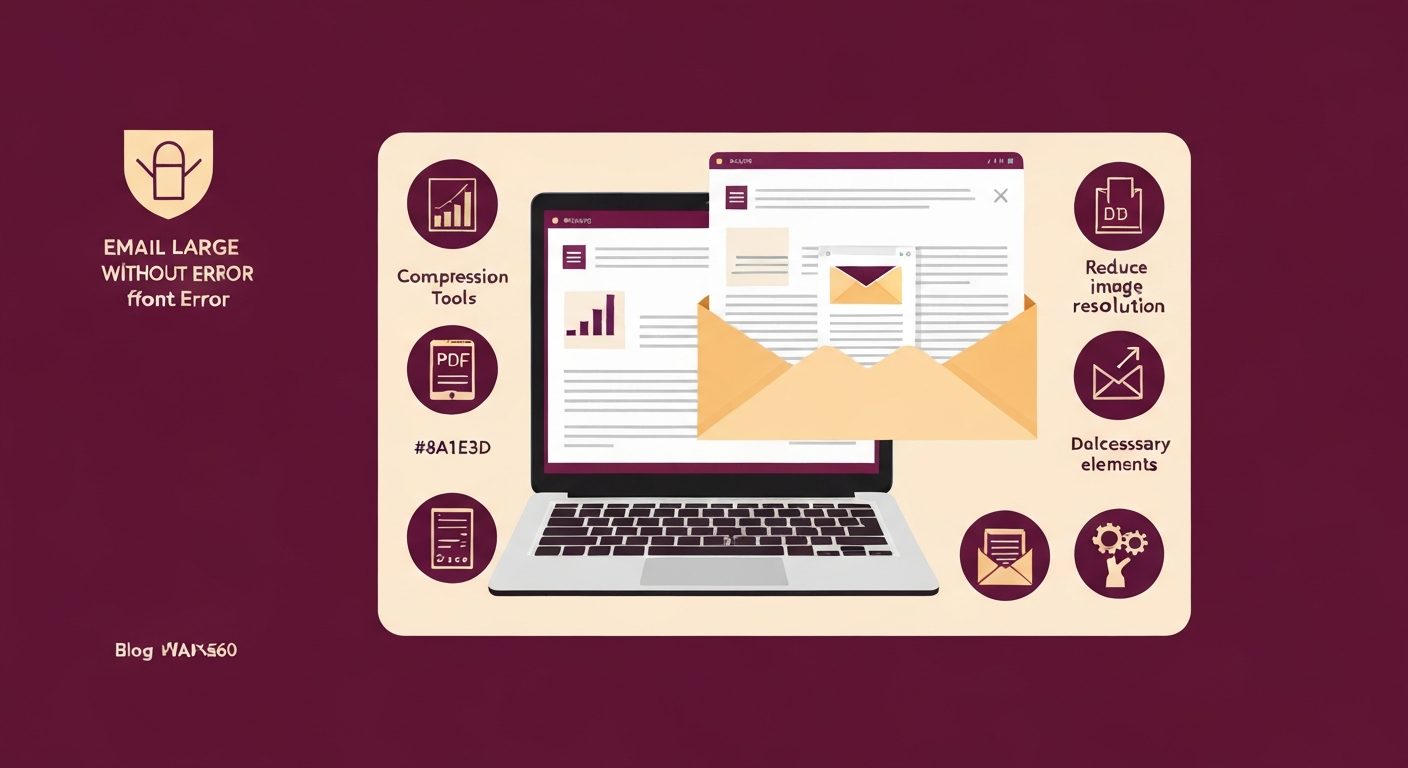
Email Large PDFs Without Error: How to Reduce PDF Size for Email
S
Super PDF Team
Editor
Are you tired of your email provider rejecting large PDF attachments? The simplest and most effective way to successfully email big PDF files without error is by compressing them to reduce their file size. This allows you to meet attachment limits and send your documents quickly and efficiently, ensuring your important information always reaches its destination.
The Frustration of Large PDF Files and Email Limits
It's a common scenario: you've just finished compiling an important report, a presentation, or a collection of high-resolution images into a single PDF, only to be met with an "attachment too large" error when you try to email it. Most email providers, like Gmail, Outlook, and Yahoo Mail, impose strict limits on the size of files you can attach, typically ranging from 20 MB to 25 MB. While this might seem generous, PDFs, especially those with many images, embedded fonts, or complex graphics, can quickly balloon in size, making them impossible to send through standard email channels.
This isn't just an inconvenience; it can lead to missed deadlines, communication breakdowns, and a lot of wasted time trying to find alternative solutions. You need a reliable way to reduce PDF size for email without compromising on content or quality.
Why Do PDFs Get So Big?
Understanding why your PDFs are so large is the first step to effectively reducing their size. Several factors contribute to a PDF's heft:
High-Resolution Images: If your PDF contains numerous high-quality photos or graphics, they can significantly increase the file size. Each pixel adds data, and high resolutions mean many pixels.
Embedded Fonts: PDFs often embed the exact fonts used in the document to ensure it displays correctly on any device. While good for fidelity, this adds data for each font style and variant.
Vector Graphics and Complex Layouts: Documents with intricate vector images, CAD drawings, or complex page layouts can have a lot of underlying data that translates into larger file sizes.
Scanned Documents: PDFs created from scanned documents are essentially image files. If scanned at a high DPI (dots per inch) and without optimization, they can be enormous.
Annotations and Metadata: While usually minor, a document with many comments, highlights, and extensive metadata can contribute to size.
The Solution: Online PDF Compression
The most straightforward and efficient method to overcome email attachment limits is to compress PDF online. Online PDF compressors work by optimizing various elements within your PDF. They can:
Downsample Images: Reduce the resolution or quality of images to a more email-friendly level, often without noticeable loss of detail for on-screen viewing.
Compress Images: Apply compression algorithms (like JPEG compression for photos) to image data.
Remove Unnecessary Data: Get rid of redundant information, metadata, or unused elements.
Subset Fonts: Only embed the characters of a font that are actually used in the document, rather than the entire font file.
Super PDF's Compress PDF tool is specifically designed for this purpose. It offers a balance between reducing file size and maintaining document quality, ensuring your PDF remains professional and readable.
How to Reduce PDF Size for Email Using Super PDF
Using Super PDF to reduce PDF size for email is incredibly simple, requiring just a few steps:
Visit the Compress PDF Tool: Navigate to our dedicated Compress PDF page.
Upload Your PDF: Click the "Choose File" button or drag and drop your large PDF directly into the designated area.
Select Compression Level: Super PDF often provides options for different compression levels (e.g., strong, recommended, light). Choose the one that best suits your needs for file size reduction versus quality preservation. For emailing, the "recommended" or "strong" option usually works best.
Start Compression: Click the "Compress" button. Our powerful servers will quickly process your file.
Download Your Compressed PDF: Once the compression is complete, you'll see the percentage of size reduction. Download your newly optimized PDF file.
That's it! Your PDF is now significantly smaller and ready to be attached to your email without triggering those frustrating size warnings.
Why Choose an Online Compressor Like Super PDF?
When you need to email large files, an online tool like Super PDF offers distinct advantages over other methods:
No Software Installation: You don't need to download or install any applications, saving disk space and avoiding compatibility issues.
Accessibility: Use it from any device (desktop, laptop, tablet, smartphone) with an internet connection.
Speed: Online tools are optimized for quick processing, delivering your compressed file in seconds or minutes, depending on the original size.
Ease of Use: Simple, intuitive interfaces mean anyone can use them, regardless of technical skill.
Security: Reputable online services like Super PDF prioritize your data's privacy. Files are securely processed and typically deleted from our servers after a short period.
Cost-Effective: Many online compressors, including Super PDF, are completely free to use.
Here's a quick comparison of common methods for handling large PDFs:
Feature
Super PDF Compressor
Desktop Software (e.g., Adobe Acrobat)
Zipping Files
Splitting PDF into Parts
Ease of Use
Very Easy
Moderate (can be complex)
Easy
Moderate
Installation
None (Browser-based)
Required
None
None (online tool)
Quality Control
Good
Excellent
None (just packaging)
Perfect (no quality loss)
File Size Reduction
Excellent
Excellent
Minimal (already compressed)
Divides size, doesn't reduce
As you can see, for sheer convenience and effectiveness in reducing file size for emailing, an online compressor like Super PDF stands out.
Beyond Compression: Other Strategies for Large PDFs
While compression is your primary weapon, a few other strategies can help with PDF file size limit issues:
Split the PDF: If your document is extremely long or contains distinct sections, consider splitting it into multiple smaller PDFs. You can use our Split PDF tool to easily separate pages or page ranges into individual files, which can then be sent as separate attachments or in subsequent emails. This is particularly useful for reports where different sections might be relevant to different recipients.
Convert to a Lighter Format (with caution): Sometimes, the original document format before it became a PDF might be smaller, but conversion from PDF can lead to quality loss. If you originally created a large PDF from images, consider optimizing those images first and then converting them. Our tools can help if you need to go from PDF to another format, or from another format to PDF after optimization.
Use Cloud Storage: For truly massive PDFs (hundreds of MBs or even GBs) that still exceed email limits even after compression and splitting, cloud storage services (like Google Drive, Dropbox, or OneDrive) are your best bet. Upload the PDF there and simply share a link with your recipient. This bypasses email attachment limits entirely.
To ensure your PDFs always make it to their destination without a hitch:
Always Compress First: Make it a habit to run your PDFs through a compressor, especially if they contain images or are more than a few pages long.
Check Recipient's Limits: If you know your recipient uses a specific email provider, be aware of their limits.
Clear File Naming: Use descriptive file names (e.g., "Project Report Q3 - Compressed.pdf") so recipients know exactly what they're opening.
Consider Cloud for Ultra-Large Files: Don't hesitate to use cloud storage for files that remain very large even after compression.
Test Send: For critical documents, send a test email to yourself or a colleague to ensure it goes through and opens correctly.
Send Large PDFs with Confidence Today!
Don't let email attachment limits hold you back from sharing your important documents. Our powerful and user-friendly tools are here to simplify your workflow. Ready to send those large PDFs without a hitch? Head over to our Compress PDF tool now and experience the simplest way to reduce PDF size for email. It's fast, free, and incredibly effective, helping you overcome those pesky file size restrictions with ease.